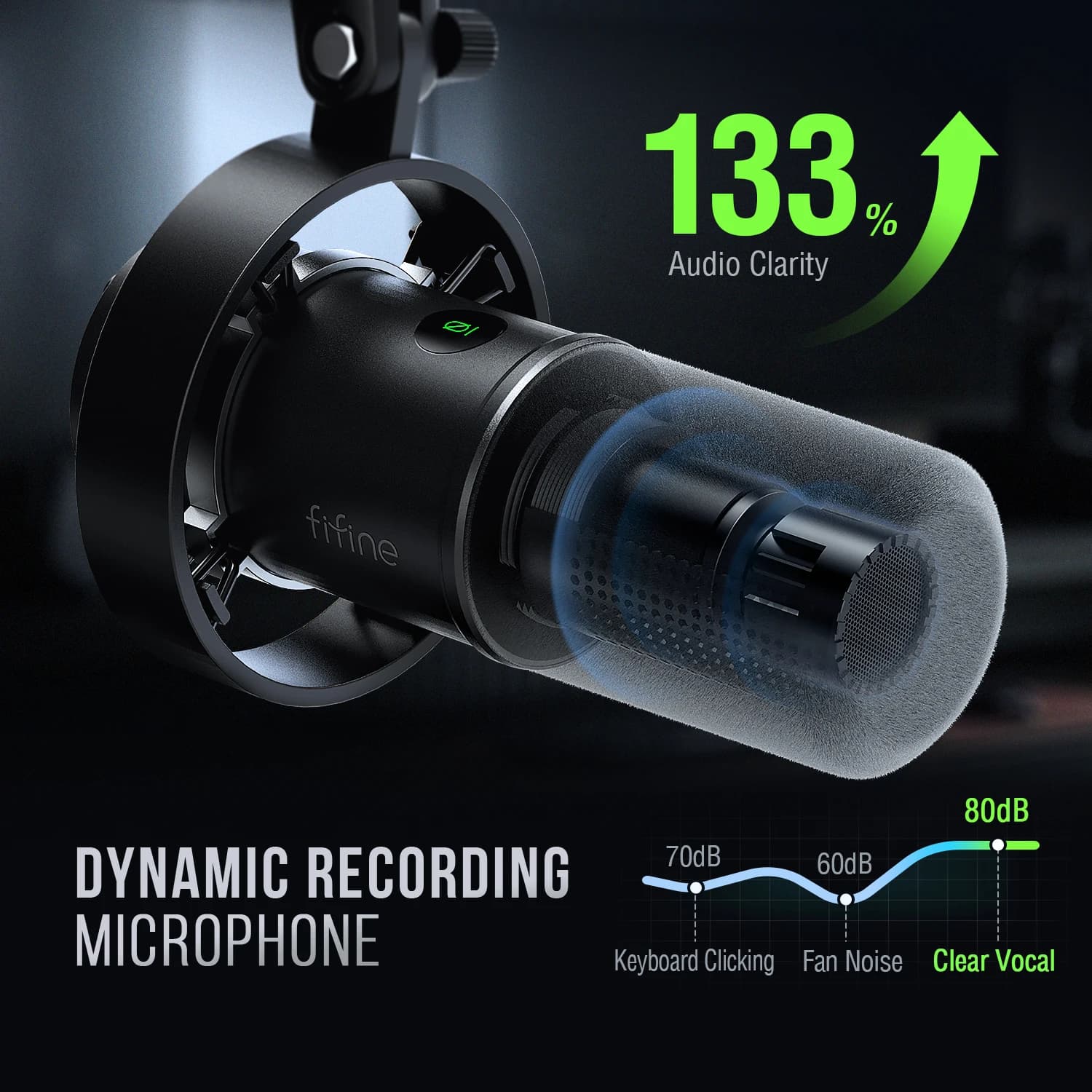
Featuring durability and adaptability, the dynamic microphone, with 130dB SPL, will not distort the output audio of voice or music recording, maintaining its originality. The cardioid pattern is quite directional, which can handle background noise, such as hard drives or computer fans. The studio microphone delivers initially detailed vocals without much additional noise processing.
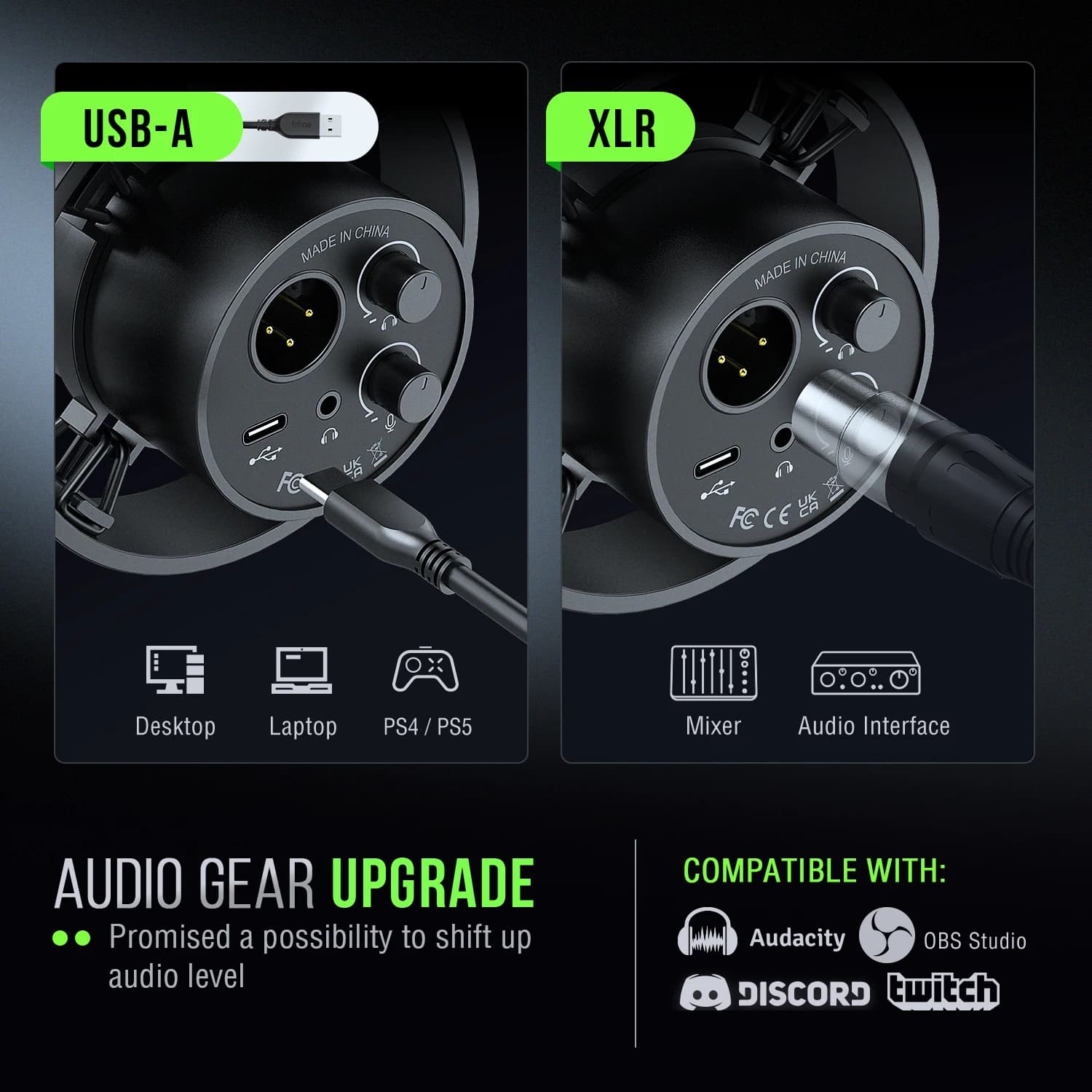
Upgrade XLR output and convenient USB output
Featuring USB and XLR connections, it is a significant advantage for you to podconner in different ways if you use the portable when you are at work.
##
Mute and gain control
to mute instead of pressing a button, which is noise-free to avoid adding unnecessary noises to your podcast or streaming audio. No need to fiddle with software settings, you can control the recording audio volume using a gain knob on the mic to produce more vivid broadcast sound.
Volume monitoring and adjustment
The ability to monitor in real time as well as headphone volume control are added bonuses for recording professionals that stand out in studio podcasting. Monitor whether your own audio conforms to the intended or noise reduction effect, to adjust the audio in a shorter time. Directly rotate the headphone volume knob on the mic to listen to each audio frequency, which is more accessible for recording work.
Additional noise reduction
The dynamic microphone requires keeping a close distance to record. So the included windshield can cushion the impact of plosives to help you reduce the harshness of vocals. When recording bass audio, the external shock mount eases vibrations and unwanted low-frequency mechanical noise, keeping your recording clean, natural and powerful.
what's in the box?
*microphone with shock mount
*8.2ft (2.5m) USB C to USB A cable
- 5/8" male to 3/8" female adapter
*user manual
Q: How to use with Windows computer via USB cable?
A: It's easy to plug and play this dynamic microphone on PC and Macbook via USB connection. You can follow the tutorial video for step-by-step setup. Windows System: 1. Plug this recording microphone into PC via USB connection, right-click the speaker icon at the bottom right of the screen and click "Open Sound Settings".
- Click "Sound Control Panel", select "Recording" tab and choose "Fifine Microphone" as the default device. When you speak into the mic, the bar icon will turn green and bounce.
- Double-click “Bifine Microphone” to open the “Microphone Properties” window, click the “Levels” tab and drag the progress bar to adjust the mic level.
Mac OS system: 1. Plug this podcast microphone into Macbook, click the Apple icon on the top left of the screen. Select "System Preferences".
- Click the "Sound" icon, then click the "Input" tab and select "Fifine Microphone" as the default input device. When you speak into the mic, the input level meter will move. Drag the progress bar to adjust the input volume
Q: How to use the mic with PS4 and Xbox?
A: This XLR/USB microphone is NOT compatible with Xbox connection, neither USB nor XLR, but can be used with PS4/PS5. You can plug this dynamic microphone into PS4/PS5 via USB connection and configure easily. Follow the instructions below. 1.Click “Settings” at the top right of the screen, scroll down to find “Sound” and click it.
- Choose "Microphone", "Input Device" - Select "Fifine Microphone" as the input device.
- Click “Adjust Microphone Level,” then drag the progress bar to adjust the microphone level.
Q: 48V phantom power required? Turn off at preamp or leave on?
A: No, this XLR/USB podcast recording mic does not require phantom power. And please turn it off at the preamp when using the mic.
A: Is it 16 or 24 bits?
Q: It is 16 bit for this XLR/USB dynamic microphone, it is very suitable for studio recording and podcast which delivers clear and crisp sound quality.
 New in